
Activating KBC Mobile on your smartphone using itsme®
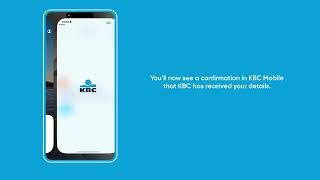
This demo shows you how to easily install and activate KBC Mobile on your smartphone using the itsme® app.
Watch the video
https://www.youtube.com/watch?v=55wV2TCPEnA
We should point out that the customers and data in the demo are fictional. The screens on an Android device may vary slightly from this demo.
Follow the step-by-step guide
- Install KBC Mobile on your smartphone and then tap the app’s blue icon.
- Tap your preferred language. and choose what you’d like to do. Tap ‘Log in’.
- Choose whether to allow KBC Mobile to track your activity across other companies’ apps and websites.
- Indicate which cookies you want to accept.
- Choose how you want to log in by tapping ‘itsme® on your phone’ at the top of the screen.
- In itsme® app:
- Log in to itsme® and scan the QR code.
- Check which details you’re going to share and tap the ‘Confirm’ button at the bottom.
- Enter your itsme® code and tap ‘OK’ at the bottom right.
- On the confirmation screen in KBC Mobile, tap the ‘Next’ button.
- Enter your e-mail address or check whether the address shown is correct.
- Tap the ‘Share your data here’ button at the bottom of your screen for extra protection against scammers.
If you don’t want us to use your location for this check, you won’t be able to progress any further. Please close the app and make an appointment with your branch. - Read the texts. Tick the square at the top left of your screen by tapping it and then tap the blue ‘Accept the terms and conditions’ button at the bottom.
- Enter a 5-digit PIN of your choice and tap the blue tick.
- Enter your PIN again and tap the blue tick.
- If you want to use facial recognition, set it up by sliding the button next to ‘Face ID’ to the right. Then tap ‘Continue’.
- Now choose whether you want to receive notifications from KBC. In this demo, we first tap ‘Enable notifications’ and then ‘Allow’.
- Choose which commercial offers you’d like to receive. In this demo, we choose ‘Personalised’.
You’re all set to start using KBC Mobile.