


Verification of Payee and instant credit transfers
- Make transfers more securely
- Prevent fraud and errors
- Choose the fastest method (24/7 on any calendar day)
New Instant Payments Regulation: how will this affect you?
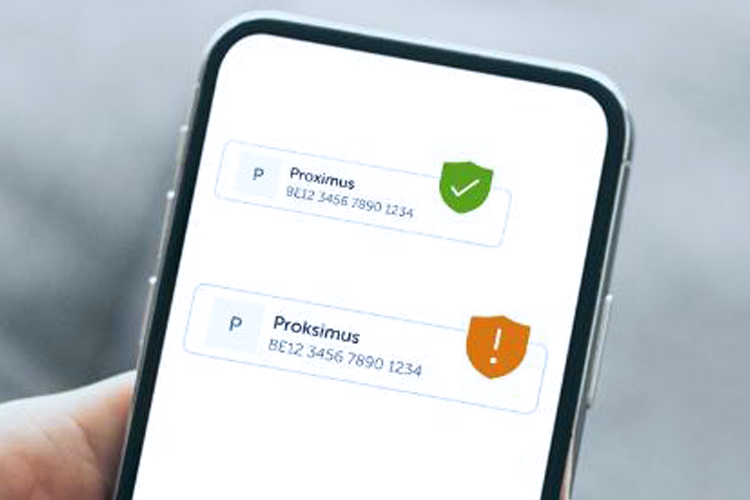
All euro area banks are required to perform an additional check in which they verify the beneficiary name, otherwise known as ‘Verification of Payee’. KBC also checks whether the name and account number of your beneficiary match the details in the beneficiary bank’s records. We do this for all traditional and instant credit transfers.
Within five seconds, you will be informed whether the payment was successful or not. If there’s a problem, you’ll be notified and you can choose what to do next – either check the beneficiary's details and update them or continue with the transfer.
This scheme is part of the new Instant Payments Regulation and is aimed at enhancing security for transfers and preventing fraud and incorrect transfers.
Checking your batched payments to make sure the Verification of Payee is correct is now even easier. Our dedicated tool allows you to check the details first, after which you can continue processing the payments with peace of mind.
Our demo video explains exactly how the check works and the notifications you can receive, or you can go to our frequently asked questions for further details.


An instant credit transfer means the money is deposited into the beneficiary's account immediately, 24/7 (i.e. including at night, on weekends, public holidays and bank holidays). Batched payments can also be processed 24/7.
Your batched payments are processed as a traditional credit transfer by default. If you want your batched payments to be processed instantly, you can indicate this in the batched payment using the ‘Local Instrument Code’ field. If an instant credit transfer fails, your transaction will be declined and the amount will be credited back to your account. You can then make your transfer as a traditional credit transfer.
Check out our frequently asked questions for even more information about instant credit transfers.
What notifications can I receive?
After a transfer, you will receive one of the following three notifications: a green, orange or grey notification shaped like a shield.
Green notification
When you see a green notification when transferring money to a person or a company, it means the name and account number you entered match the details in the beneficiary bank’s records. We perform this additional check to confirm whether the details are accurate and it is safe for you to transfer the money.
Orange notification
The name and the account number do not match. This can mean two things:
- The details are a close match: you will receive an orange notification if the beneficiary’s name differs slightly from the name in the beneficiary bank’s records. Perhaps there was a typo in the information you entered: for example, ‘Jansens’ instead of ‘Janssens’. The notification will contain a suggestion for the correct name. Always check whether the name suggested is the correct name.
- The details are not a match: you will also receive an orange notification if the name and account number you entered do not at all match the details in the beneficiary bank’s records.
Grey notification
In certain cases, we may be unable to check whether the name and account number entered match the details in the beneficiary bank’s records.
You can receive a grey notification for various reasons:
- We, our partner performing the check or the beneficiary bank could be experiencing technical difficulties.
- It may also be the case that the beneficiary bank doesn’t offer this additional check yet or the account may have only just been opened.
Always check the name and the account number
If you continue with the transfer without making any changes, the amount could be sent to the wrong beneficiary. You will be liable for the transfer if it is fraudulent.
What to do if you suspect fraud or have doubts about a payment
If you’ve fallen victim to fraud or suspect this might be the case, it’s important that you immediately contact Secure4u, our fraud department. You can call them 24/7 on 016 432 000.
What should I do if I receive an orange notification?
Transfers to personal accounts
- Be sure to enter at least the surname in the beneficiary field
- Contact the person or company you are transferring money to and ask for the full name of the person or company
Transfers to business accounts
Check the details and, if necessary, contact the beneficiary (note that contact details on a forged invoice may also be fake).
Which part of the names will KBC check?
For private individuals, we will check the surname and first name of all account holders (in other words, the people linked to the account). In case of a typo, we will only show the name of the account holder whose name you entered.
For legal entities, we will check the legal names registered with the beneficiary bank as well as any legal abbreviations registered with the bank.
How will my company name be checked if I am not the payer but the payee?
We will check the name entered against the name we have on record (the legal name).
If the name is a match, your payer will receive a notification shaped like a green shield and the payment can proceed. If the name is not a match, an orange shield will be shown.
When your payer sees a notification, they may have some concerns. The best way to avoid unnecessary questions and delays is to make sure the name on your invoices is identical to the name we have on record.
We are able to check not only legal names but also commercial names. Therefore, we recommend that you register your commercial name in the CBE database.
Can other people see my name?
That depends on the situation.
- We will never show the name of a private individual when you only enter the account number for a transfer. Only if there are slight differences in the name, for instance if it contains an obvious typo, do we show the name the beneficiary bank has on record (for example, ‘Jansens’ instead of ‘Janssens’).
- For transfers to legal entities, we will show the legal name.
Is the check performed on standing orders?
Yes, it is. The check is performed both when setting up and when signing the standing order. Please note that once you’ve signed the order, we do not perform the check on any subsequent transfers.
Standing orders set up in the past are not subject to this check. The check is only performed when setting up and signing the order. This means you may need to enter these details again.
How do I make sure my customers know my company’s invoices are genuine?
If you have only recently opened a new account or if the name on your invoice is not identical to the name we have on record, payers may receive an orange or grey notification when transferring money to you. The best way to avoid unnecessary questions is to make sure the name on your invoices is identical to the name we have on record.
Do you have a company?
- If so, be sure to include your company's full legal name and legally recognised abbreviation on your invoices (in addition to your trade name).
- Where necessary, update your registration in the CBE database by also entering trade names, not just the name and abbreviation appearing in the Articles of Association.
Are you a sole trader?
- The payee will not be verified based on the trade name, but on your personal name. Even if your trade name is registered in the CBE database, the check will still be performed on your personal name.
- Make sure that your personal name is included on the invoice in its invoicing details, so that the customer can enter those details when transferring money to you (do not use the trade name).
How do I register my trade name in the Crossroads Bank for Enterprises (CBE) database?
You can register your details in one of two ways:
1. Update your details directly in the CBE database via MyEnterprise:
• Log in using itsme® or your eID (only your company’s legal representative has access)
• Add your trade name under ‘Entity details’
• You’ll receive confirmation by e-mail or in your mailboxLearn more by watching this instructional video on the FPS Economy site.
2. A business one-stop shop known as a ‘business counter’ will take care of the registration for you.
You can find a counter near you at weblist.economie.fgov.be/en/business-counters.
Important:
• Enter the commercial name of your company (not of your establishment units).
• The CBE sends your details to SurePay just once a month, on each first Sunday. It is only then that your new or modified trade name will be used when required for verification purposes.
Are you a legal entity?
We take account of the commercial name that you’ve registered in the CBE database for verifying the payee's name.
Are you a sole trader?
In that case, the payee will not be verified based on the commercial name, but on the surname and first name of the account holder(s).
How do I register my trade name in the Crossroads Bank for Enterprises (CBE) database?
You can register your details in one of two ways:
1. Update your details directly in the CBE database via MyEnterprise:
- Log in using itsme® or your eID (only your company’s legal representative has access)
- Add your trade name under ‘Entity details’
- You’ll receive confirmation by e-mail or in your mailbox
Learn more by watching this on the FPS Economy site:
2. A business one-stop shop known as a ‘business counter’ will take care of the registration for you.
You can find a counter near you at weblist.economie.fgov.be/en/business-counters.
Important:
- Enter the commercial name of your company (not of your establishment units).
- The CBE sends your details to SurePay just once a month, on each first Sunday. It is only then that your new or modified trade name will be used when required for verification purposes.
Are you a legal entity?
We take account of the commercial name that you’ve registered in the CBE database for verifying the payee's name.
Are you a sole trader?
In that case, the payee will not be verified based on the commercial name, but on the surname and first name of the account holder(s).
General
Are batched payments also checked?
Yes, they are using the VOP Bulk Portal, which is separate application from our payment applications (such as KBC Reach and Online for Business). It is therefore not performed automatically. You have to upload the batched payment to the VOP Bulk Portal first to carry out the check, and then upload it to our payment application for processing.
What is the VOP Bulk Portal?
The VOP Bulk Portal is a secure, standalone application that lets you verify the account number (IBAN) and beneficiary name for multiple SEPA credit transfers included in a single batched payment.
This verification is performed before you initiate and authorise the batch using one of our payment applications (such as KBC Reach or KBC-Online for Business).
Who has access to the portal?
Access to the portal is granted to payment application users who have the appropriate permissions and who have registered their professional e-mail address in the KBC Business Dashboard.
If you use Multiconnect, Tessi or Cedacri and do not yet have access, contact your branch.
Logging in
How do I log in for the first time?
You’ll receive an invitation e-mail from no-reply-ibannamecheck@kbc.be with a link that remains valid for seven days.
Click on the link and follow these steps:
- enter your business e-mail address (it must be registered in the Business Dashboard)
- choose a password that meets the requirements
- download an authentication app (e.g., Google Authenticator)
- Scan the QR code and enter the one-time code
After completing these steps, you’ll have access to the portal.
I did not receive an invitation e-mail. What should I do?
Start by checking whether you’ve registered your professional e-mail address in your KBC Business Dashboard profile.
You should also check your spam or junk e-mail folder.
If everything is correct and you still haven't received an invitation, send an e-mail to vop@kbc.be to request a new invitation.


I already have access to the portal. Can I log in with another organisation using the same e-mail address?
Yes, you can log in with the other organisation by following the steps below:
- Accept the invitation.
- Instead of creating a new password, click ‘Log in’ and enter your existing details in order to be activated for the new organisation as well.
- Once you’ve been added, you can choose between different organisations after logging in.
What is Multi-Factor Authentication (MFA) and how do I set it up?
Multi-Factor Authentication (MFA) is a security feature that protects your account by requiring more than one form of authentication when you log in.
Instead of just a password, MFA asks for additional confirmation. We do this with a notification sent to an authentication app (such as Google Authenticator).
MFA is important because passwords can be stolen, guessed or leaked. MFA adds an extra layer of security so that someone with your password will still be unable to gain access without the second authentication step.
How does it work?
- You enter your username and password
- You confirm your identity through a second step, for example by approving a notification on your phone
- Following successful authentication, you can securely access your account
Checking batches
What should I pay attention to when uploading a CSV or XLS file?
- Use semicolons (;) as a separator in CSV
- Place names with special characters in inverted commas
- Avoid empty rows or merged cells
- Use UTF-8 encoding for CSV files
- Make sure there are no formulas or macros
- Stick to the defined column structure, even for unused fields
What should I do with the results?
We provide information about the beneficiary. If the result is not a match, we recommend checking the payee's details and correcting them (if necessary) before you execute the batched payment in our payment applications.
If you decide not to make any changes, you accept full responsibility for the payment and acknowledge that no refund can be claimed in case of fraud.
What should I do if some rows have a ‘400’ error?
These are ‘row-level errors’. A result file is still generated.
Columns display error information such as Error Type, Error Code and Error Detail.
Common row-level errors and solutions
- MANDATORY_FIELD_NOT_PROVIDED (A mandatory field is missing): fill in all mandatory fields (invalid field format)
- INVALID_FIELD (Invalid field format): check if the format follows the rules
- NAME_TOO_LONG (The name is too long): Shorten the name to max. 140 characters
- MUTUALLY_EXCLUSIVE_FIELDS_USED (Conflicting fields have been filled in): Choose either the name or organisation ID
What should I do if I receive a ‘500’, ‘503’ or ‘504’ error?
(These appear in the result file at transaction level.)
- 500 – Internal Server Error: Try again later or contact vop@kbc.be if the problem persists.
- 503 – Service Unavailable: This is likely maintenance. Wait until after maintenance is complete and try uploading again.
- 504 – Gateway Timeout: A bank did not respond within the statutory VOP deadline. Try the entry again with a new file check.
General
What happens if instant processing fails?
After signing the instant credit transfer, you’re automatically taken back to the page you were on.
If an instant credit transfer fails, a pop-up appears saying that instant processing is not possible. You then have two options:
- Continue but then with a traditional credit transfer
- Cancel the transfer
If you opt for a traditional credit transfer, its details will already be filled in. All you have to do is sign it again.
What happens if we don’t receive feedback on time regarding the status of an instant credit transfer?
If we fail to receive a status update for the instant credit transfer within 10 seconds, you’ll be taken back to the page you were on before you initiated the transfer.
As soon as its status comes through, you’ll see a pink pop-up (fly-in notification) in the top right of the screen with the outcome of the payment order.
A link to the list of failed instant credit transfers is provided in that notification. When you follow the link, you can make the same payment again in just one click, but then as a traditional credit transfer. All you have to do is sign it again.
If you’re not currently logged in to Reach, you’ll see the notification the next time you log in.
Are instant credit transfers also possible outside Belgium?
Yes, instant credit transfers can be made to foreign account numbers within SEPA*, provided the payee's bank is able to receive this type of transfer. Overview of countries where banks must be able to receive instant credit transfers:
- EEA (euro): mandatory from 9 January 2025
- EEA (other than euro): mandatory from 9 January 2027
- Other SEPA countries: optional
More detailed information can be found in this EPC Document.
* Find out more about SEPA at What is SEPA? What does it entail for me as a business owner? – KBC Banking & Insurance
What types of payment can be made by instant credit transfer?
Euro-denominated payments made from a euro payment account within SEPA are already possible.
The following capabilities will become available in the future:
• Euro-denominated payments from a non-euro payment account within SEPA
• Standing orders (until then, standing orders will continue to be processed as traditional credit transfers. However, you can select a non-banking day and your account will be debited accordingly, but the payee's account will not be credited until the next banking day.)
Are there any limits for instant credit transfers?
The same limits apply as for traditional credit transfers.
In addition, the transaction limit for outgoing instant credit transfers is 1 000 000 euros. Any transaction higher than 1 000 000 euros cannot be carried out as an instant credit transfer.
If you wish, you can also start setting your own limit for instant credit transfers as from 24 August 2026 (in Online for Business and via your branch) and as from November 2026 (date to be finalised – in KBC Mobile and KBC Touch). The limit can be set to any amount between 0.01 euro and 1 000 000 euros.
What is the transaction limit for instant credit transfers?
By default, no transaction limit is set for instant credit transfers (apart from the general transaction limit of 1 million euros – see previous question). However, you can set your own limit at account level. This limit applies to each outgoing instant credit transfer, including Wero payments and batch payment transactions.
When a transaction limit is set, it is applied immediately across all the channels where you can carry out instant credit transfers (including the KBC Business app and KBC Reach), i.e. you don’t have to wait for the limit to take effect.
You can manage the limit for a personal account if you are the holder or joint holder of that account. However, you must be an administrator to do that for a business account.
If you exceed the limit set for you, you can choose either to make payment using a traditional credit transfer (except for Wero, which only offers instant credit transfers) or to increase your limit first and then enter the transaction details again.
The transaction limit does not apply to transfers between accounts in your name or held jointly with someone else.
KBC Mobile & KBC Touch
How do your carry out an instant credit transfer?
At KBC, you can choose between instant and traditional credit transfers. All transfers in KBC Mobile and KBC Touch are processed as instant credit transfers by default.
If you adjust the execution speed in the general settings, that setting will be applied to all new credit transfers.
For each individual transfer, you can always change the speed for that specific transaction.
What if an instant credit transfer doesn’t go through?
After signing the instant credit transfer, you’re automatically taken back to the page you were on.
If an instant credit transfer fails, a pop-up appears saying that instant processing is not possible. You then have two options:
- Continue but then with a traditional credit transfer
- Cancel the transfer
If you opt for a traditional credit transfer, its details will already be filled in. All you have to do is sign it again.
Can instant credit transfers be carried out even if more than one person has to sign (multi-signing)?
Yes, they can. The person entering the credit transfer details can specify the processing speed. The last person to sign will then receive feedback on whether the transfer went through or not.
If instant processing is not possible, the last person to sign can change the processing speed to that for a traditional credit transfer without the others having to sign again.
Are instant credit transfers possible even if they are scheduled to be carried out in the future?
Yes they are. By default, future-dated payments are carried out as quickly as possible on the chosen date.
When creating such a payment, you can select any calendar day and adjust the speed to ‘instant’ or ‘traditional’ as required. The general speed setting you use for transfers that are not future-dated does not apply here.
Future-dated payment orders that have been created before 7 September 2026 will be processed as traditional credit transfers. Their processing speed can no longer be changed.
This procedure also applies to future-dated payment orders created through Kate.
How do you receive feedback on the status of future-dated payments?
It depends on the speed you have chosen:
As fast as possible: if an instant credit transfer fails, the transaction will be carried out as a traditional credit transfer. If that fails too, you’ll receive a notification in your banking app no later than the next banking day.
Traditional: you’ll receive a notification in your banking app no later than the next banking day.
Instant:
- if KBC Mobile is the channel you used to enter the payment instructions, you’ll receive a push notification in KBC Mobile. Where possible, you’ll also see a debit or credit entry in your overview of transactions.
- If KBC Touch is the channel you used to enter the payment instructions, you’ll receive a notification (in both KBC Mobile and KBC Touch). Where possible, you’ll also see a debit or credit entry in your overview of transactions.
How do you receive feedback on the status of future-dated payments?
It depends on the speed you have chosen:
- As fast as possible
if an instant credit transfer fails, the transaction will be carried out as a traditional credit transfer. If that fails too, you’ll receive a notification in your banking app no later than the next banking day. - Traditional
you’ll receive a notification in your banking app no later than the next banking day. - Instant
- If KBC Mobile is the channel you used to enter the payment instructions:
You’ll receive a push notification in that app and, where possible, you’ll also see a debit or credit entry in your overview of transactions. - If KBC Touch is the channel you used to enter the payment instructions:
you’ll receive a notification (in both KBC Mobile and KBC Touch) and, where possible, you’ll also see a debit or credit entry in your overview of transactions.
- If KBC Mobile is the channel you used to enter the payment instructions:
KBC-Online for Business & KBC Business
Only for debiting KBC and CBC accounts.
How do your carry out an instant credit transfer?
At KBC, you can choose between instant and traditional credit transfers.
In KBC-Online for Business and the KBC Business app, transfers are processed as instant credit transfers by default.
You can adjust the execution speed in the general settings of KBC-Online for Business.
This setting will apply to all new credit transfers in both Online for Business and the Business app. For each new credit transfer, you can still adjust the execution speed per transaction.
* The default execution speed can be configured in the general settings per company.
How do you receive feedback in KBC-Online for Business and the KBC Business app?
Online for Business & worksheet transactions in KBC Business:
Depending on whether the instant credit transfer went through or not, you’ll be taken directly to the ‘Processed payment orders’ screen or the ‘Failed instant credit transfers’ screen after signing the transfer(s).
- The instant credit transfer was successful: a green pop-up will tell you that the instant credit transfer has been successfully processed and you’ll be immediately redirected to the ‘Processed payment orders’ screen.
- The instant credit transfer failed: an orange pop-up will show how many instant credit transfers went through and how many failed. You’ll also be immediately redirected to the ‘Failed instant credit transfers’ screen. Those transfers can be submitted again but then as traditional credit transfers. Instant credit transfers that cannot be submitted again as a traditional credit transfer will appear on the ‘Failed transfers’ screen.
Individual transfers initiated directly in the KBC Business app:
For individual instant credit transfers that are entered and signed directly in the KBC Business app, you’ll receive feedback in the transfer flow, just as you would in KBC Mobile and KBC Touch.
What happens if we don’t receive feedback on time regarding the status of an instant credit transfer?
If 10 seconds pass and we haven’t received a status update on the instant credit transfer entered, the status ‘Payment unknown’ will appear in the Online for Business worksheet. Once the status is known, you’ll receive a message in Online for Business with the outcome of the payment.
You’ll receive a push notification and a message in the KBC Business app as soon as the status of your payment is known.
Are instant credit transfers possible even if they are scheduled to be carried out in the future?
By default, future-dated payments will be carried out as quickly as possible on the chosen date as from 24 August 2026 (in Online for Business) and 7 September 2026 (in KBC Business).
When creating such a payment, you can select any calendar day and adjust the speed to ‘instant’ or ‘traditional’ as required. The general speed setting you use for transfers that are not future-dated does not apply here.
Future-dated payment orders that have been entered before 24 August (Online for Business) or 7 September 2026 (KBC Business) will be processed as traditional credit transfers. However, it is still possible to change the processing speed but only in Online for Business.
How do you receive feedback on the status of future-dated payments?
It depends on the speed you have chosen:
- As fast as possible
if an instant credit transfer fails, the transaction will be carried out as a traditional credit transfer. If that fails too, you’ll receive a notification in your banking apps no later than the next banking day. You won’t receive any feedback if manual intervention is required. - Traditional
you won’t receive any feedback for this type of credit transfer. - Instant
you’ll receive a notification in your banking apps and, where possible, you’ll also see a debit or credit entry in your overview of transactions.
KBC Reach
For debiting KBC BE and CBC accounts, as well as the accounts of Western European branches*.
* KBC Italy, KBC France, KBC Germany, KBC Netherlands, KBC UK
How do your carry out an instant credit transfer?
At KBC, you can choose between instant and traditional credit transfers.
All transfers in KBC Reach are processed as instant credit transfers by default.
You can change this at the transaction level by setting the execution speed to traditional.
If you do so, that particular transfer will be carried out as a traditional credit transfer.
What happens if instant processing fails?
After signing the instant credit transfer entered, you’ll be redirected to the page you were working on.
If the instant credit transfer doesn’t go through, a pop-up will appear telling you that instant processing is not possible. You can then either continue, but then with a traditional credit transfer, or you can cancel the transfer.
If you continue with a traditional credit transfer, the details will already be filled in, so all you have to do is sign again.
What happens if we don’t receive feedback on time regarding the status of an instant credit transfer?
If 10 seconds pass and we haven’t received a status update on the instant credit transfer entered, you will be redirected to the page you were working on before you entered the transfer details.
As soon as the status is known, a pink pop-up will appear in the top right of the screen indicating the transfer’s status. The pop-up contains a link to the list of failed instant credit transfers.
When you follow the link, you’ll see a button for submitting the same payment again, but then as a traditional credit transfer. All you have to do is sign it again.
If you’re no longer working in KBC Reach when the status comes through, you’ll see the pink pop-up the next time you log in.
Batched payments
Available in the following channels:KBC-Online for Business, KBC Business, KBC Transfer, SWIFT for Corporates and the PSD bulk channel.
Are instant transfers possible for batched payments?
Yes, they are. By adding the note ‘INST’ to the ‘Local Instrument Code’ field at the ‘Payment Information’ level*, you can carry out an instant credit transfer.
The transfer will be processed as a traditional credit transfer if this field:
- is not completed
- contains a value other than ‘INST’
- has been completed only at transaction level
* The ‘Local Instrument Code’ field is shown at both the ‘Payment Information’ and ‘Transaction’ levels.
Only the value set at Payment Information level determines whether the instruction to carry out an instant credit transfer is executed.
At KBC, an instant credit transfer is possible for all PAIN.001 versions (version 2, 3 and 9).
Important:
Batched payments with instant credit transfers are processed 24/7.
Each batch is first converted into individual payment transactions before being executed.
This conversion takes place one transaction at a time, so large batches may take a while.
It is therefore possible that batches submitted late in the evening might not be fully converted, processed and executed before the next day.
Can you track the status of instant credit transfers included in a batched payment?
Yes, you can see this in:
- KBC-Online for Business by checking the details of the batched payment or the notifications under ‘New for you’
- KBC Reach under ‘Cash Management’
- CODA and CAMT by checking the (debit/credit) account status
- PAIN.002
Are there any limits on batched payments processed as instant credit transfers?
Yes, there is a transaction limit of 1 000 000 euros. Any transaction higher than 1 000 000 euros cannot be carried out as an instant credit transfer.
If you wish, you can also set your own limit for instant credit transfers. The limit can be set to any amount between 0.01 euro and 1 000 000 euros. If you set such a limit, every transaction from the batched payment will be checked against it (for more information on the transaction limit for instant payments, see ‘What is the transaction limit for instant credit transfers?’ in section 1 of these FAQs).
When do transactions from a batched payment reach the beneficiary if it is processed as a traditional credit transfer?
- If you submit a batched payment before 2.30 p.m.* on a banking day, the beneficiary bank will receive the transfers on the same day.
- If you opt to pay for ‘Urgent’ processing, this can be done until 4 p.m.** at the latest for batched payments with a maximum of one transaction.
* A transfer is only registered once KBC has received it correctly signed and the amount can be debited from the account. This applies on all weekdays except:
New Year’s Day (1 January), Good Friday, Easter Monday, Labour Day (1 May), Christmas Day and Boxing Day (25 and 26 December).
** Until 4.25 p.m. at the latest in KBC Reach.
Are there any changes to account information (CODA, CAMT & MT)?
We will continue to provide daily reporting at no additional cost.
This also applies:
- on weekends
- during bank holidays
- on public holidays
And to all the reporting products offered:
- CODA
- SWIFT MT94x
- CAMT.05x
- Isabel reporting
You will continue to receive account statements in CODA, CAMT and MT format.
Payments made through your bank branch
Can transactions be carried out by instant credit transfer when requested in a bank branch?
Yes, it is.
We use traditional credit transfers at bank branches.
If you ask for an instant credit transfer at your bank branch, the staff member there can initiate the transfer for you. After entering the transfer details, they will receive feedback on the status within 10 seconds and notify you immediately.
You should therefore wait for them to confirm that the transfer was successful.
What happens if we don’t receive feedback on time regarding the status of an instant credit transfer?
If feedback is not received in time, the staff member will not be able to confirm whether the transfer went through.
In this case, you should contact your branch again later.
Once the status is known, the staff member will see whether the instant credit transfer was successful or not and notify you accordingly.
If an instant credit transfer fails,
the amount concerned will be paid back into your account.