

You can use KBC Touch on your computer. The app explains things step-by-step from the outset, but here’s a handy guide to help you get off to a flying start.
What do you need?
- Your debit card
- Your scanner-equipped card reader
You can now also use the itsme® app to log in to KBC Touch for the first time on a desktop computer.
KBC Touch on your computer
- Select ‘Log in’ at the top right on our website, then 'KBC Touch'
- Confirm that you have the required debit card and card reader
The following screen will appear.
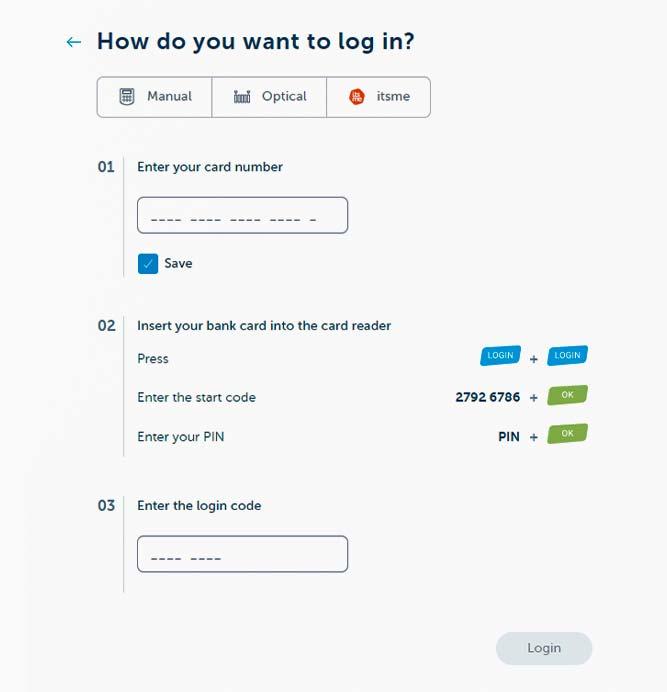
Using your KBC Debit Card and KBC card reader
Enter your card number on your computer screen (and save it so you don’t have to enter it again)
Insert your debit card (chip first) into the card reader, then press 'LOGIN' twice in succession on the card reader
Enter the 8-digit start code you see on screen on your card reader and press 'OK' (‘PIN?’ should now appear on your card reader's display)
Enter your debit card PIN on your card reader and press 'OK' to generate your unique 8-digit login code on your card reader’s display
Enter this code in the relevant field on your computer screen and hit 'Log in'
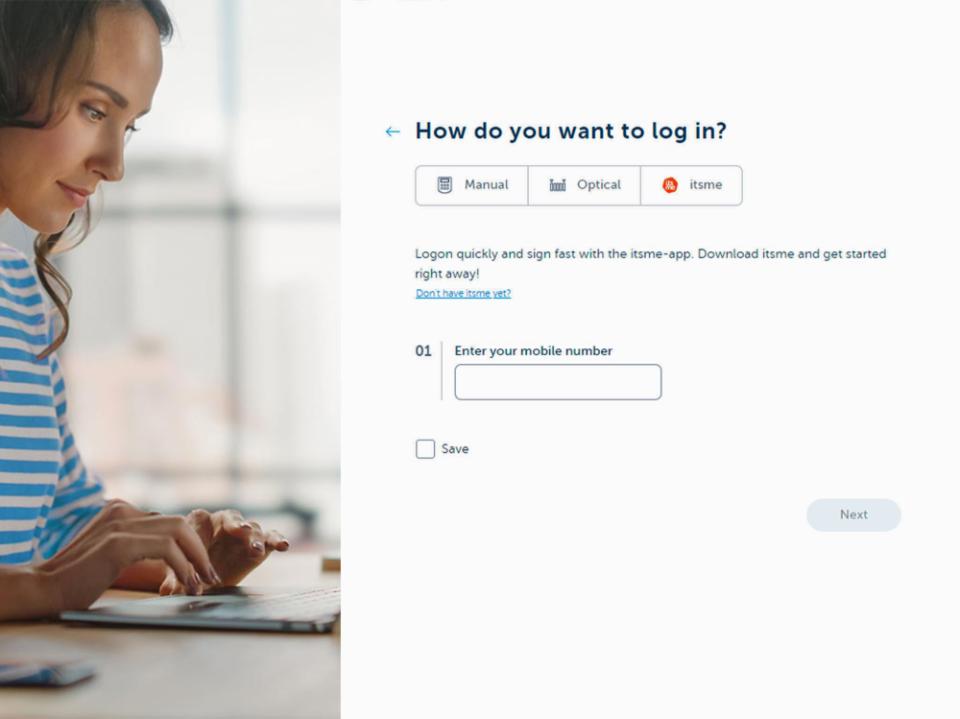
Using the itsme® app
Enter the mobile number you use for itsme® (and save it so you don’t have to enter it again)
Hit ‘Next’
Check your itsme® app for the action sent to it
Confirm the action using your itsme® app
Never divulge your codes/PIN over the phone.
Security
Security is a top priority for us, especially when it comes to online banking and insurance. That’s why KBC Touch has security software that protects you against hackers and viruses.
Logging in is only possible using the personally chosen PIN registered in your name. If you enter an incorrect PIN three times in a row, you’ll have to register again using your card reader and debit card. Another security feature is automatic logout after a few minutes of inactivity. Stay alert at all times and never divulge your personal details or PINs to anyone.
Like to know more? See how to bank safely and securely.
Find out more about KBC Touch
See all our KBC Touch online banking service can do for you at www.kbc.be/touch. Get help logging in or ask us a question by calling our KBC-Helpdesk on 016 43 25 19.